> ## Documentation Index
> Fetch the complete documentation index at: https://docs.opper.ai/llms.txt
> Use this file to discover all available pages before exploring further.
# Observe
> Score every response against criteria you write.
Observe runs a model judge over your responses and writes the result back to the trace. You decide what to check, how often to check, and how strict to be.
A typical use: catch when a support bot stops citing sources, or when a classifier starts drifting off its categories.
Observe judges the stored response, so it needs a [Comply](/control-plane/comply) retention rule on the calls you want scored. With no retention, content isn't stored and there's nothing to judge.
## Set up a rule
Open **Controls → Observe** in [platform.opper.ai](https://platform.opper.ai) and add a rule. Each rule is one judge running on its own. Several rules can match the same call, and they all fire.
A rule has four choices.
**1. Judge**: the model that runs the check.
| Judge | When to use |
| -------------------- | ------------------------------------------------------------- |
| Fast | Cheapest. Good while tuning a new rule. |
| Balanced *(default)* | Most cases. |
| Thorough | Highest accuracy, higher cost. Use when the decision matters. |
**2. Sample**: how often to check.
| Sample | What it does |
| -------- | ------------------------------------------------------------------------------------------- |
| All | Score every call. Best while a rule is new. |
| Rate | Score 1 in *N* calls. Good for high-volume projects. |
| Adaptive | Up to *N* per hour or day, then taper. Keeps judging cost predictable under traffic spikes. |
**3. Score type**: what kind of answer the judge gives.
| Type | What you get |
| ------ | --------------------------------------------------------------------------------------------- |
| Score | A number from 0 to 1. You set a threshold; anything below is flagged. Criteria is optional. |
| Binary | A 0 or 1 verdict. Criteria is required. Example: *"Return 1 if the response cites a source."* |
**4. Criteria**: what "good" looks like. Free text up to 4096 characters. Required for Binary, optional for Score.
## Where it applies
| Scope | Applies to |
| ------------ | ------------------------------ |
| Organization | Every call in your org. |
| Project | Calls in one or more projects. |
Rules at different scopes can overlap; all matching rules fire. There's no priority.
## Where you see the result
On the call's [trace span](/control-plane/trace), an **Observations** row shows the judge's commentary as markdown, with a collapsible **Scorer Breakdown** beneath it that lists each criterion's pass/fail and reasoning.
In the Controls section of the same span, an **Observe** event appears with an Eye icon, the rule name, status **Passed** or **Flagged**, and a scope badge (Org-level or Project-level).
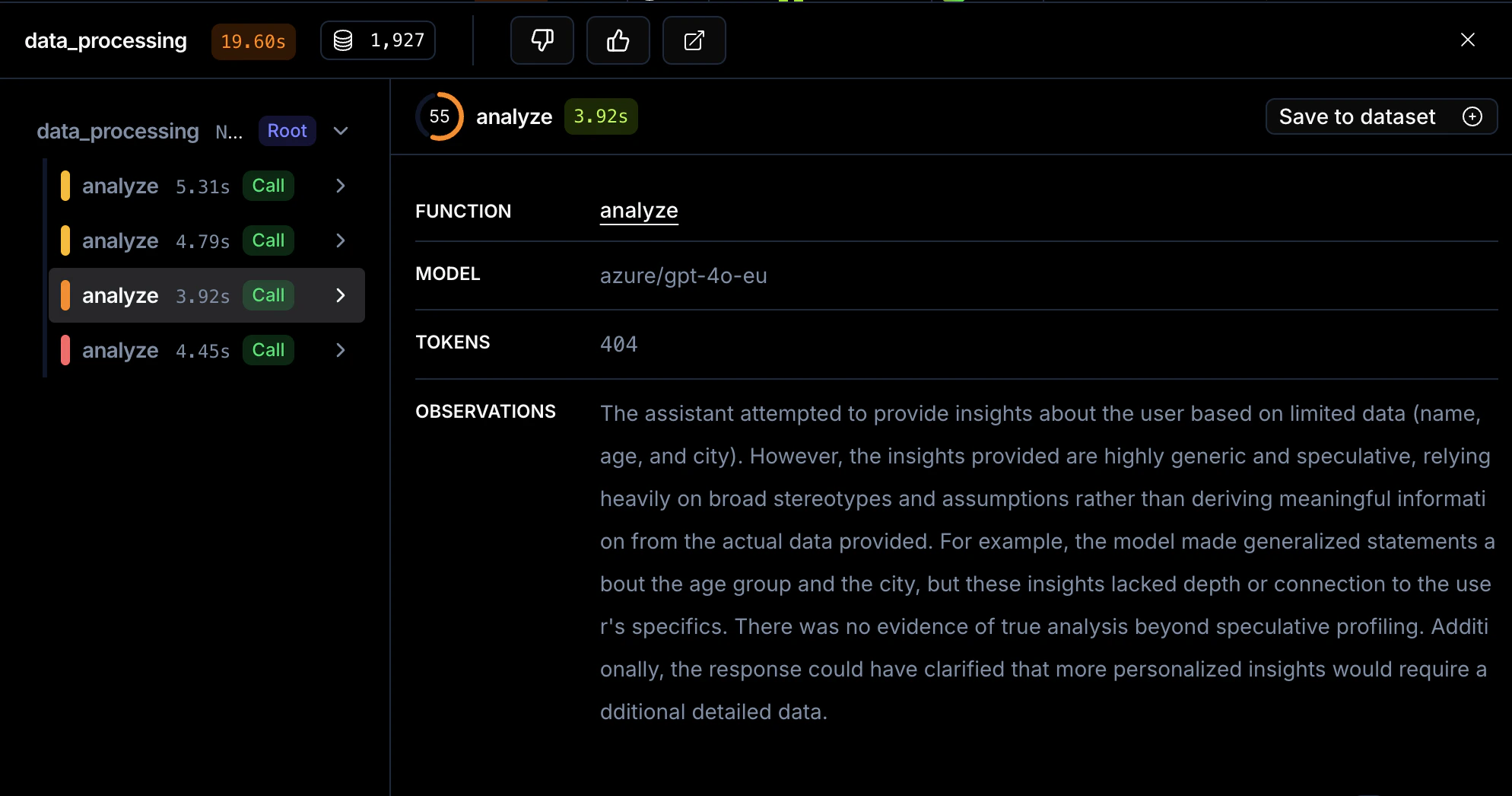 Aggregated scores roll up in the **Analytics** and **Evaluations** views, so you can see how scores trend over time.
In the playground, scoring runs when **Project controls** is on. Results don't render inline; click the **trace ↗** link in the output footer to see them.
Start with **All** sampling and a **Score** rule while tuning a new rule. Switch to **Rate** or **Adaptive** once volume grows. Use **Binary** when the question is yes/no.
Aggregated scores roll up in the **Analytics** and **Evaluations** views, so you can see how scores trend over time.
In the playground, scoring runs when **Project controls** is on. Results don't render inline; click the **trace ↗** link in the output footer to see them.
Start with **All** sampling and a **Score** rule while tuning a new rule. Switch to **Rate** or **Adaptive** once volume grows. Use **Binary** when the question is yes/no.