> ## Documentation Index
> Fetch the complete documentation index at: https://docs.opper.ai/llms.txt
> Use this file to discover all available pages before exploring further.
# Model access
> Control which providers, regions, countries, and models your apps can use.
Model access lets you define the part of Opper's model catalog that your
organization can use. Start with an organization allowlist, then narrow it for
projects with stricter requirements.
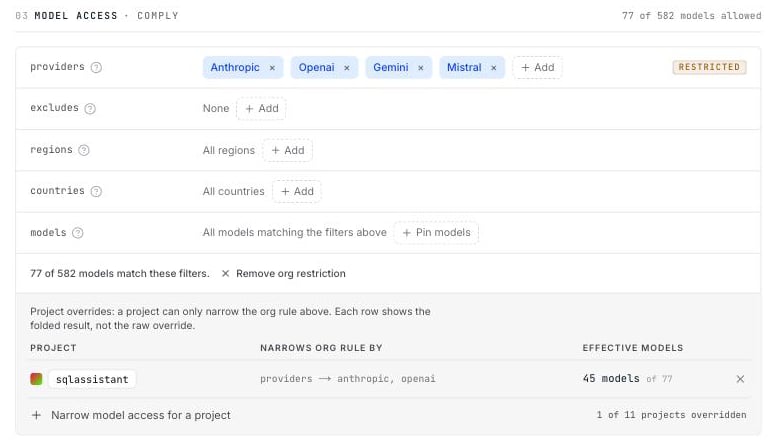 With no model-access rule, every model in the catalog is available.
## Build an organization allowlist
Select **Set an org allowlist**, then filter the catalog by any combination of
these fields:
| Field | Use it to |
| --------------------- | ------------------------------------------------------------------------------------------------ |
| **Providers** | Allow selected providers, such as Anthropic or OpenAI. |
| **Blocked providers** | Block providers even if another filter would include them. |
| **Regions** | Limit where inference runs. |
| **Countries** | Limit the serving datacenter's jurisdiction. **Other** includes models without country metadata. |
| **Models** | Allow only specific catalog models. |
A model must match every field you set. Leave a field empty when you do not want
to filter on it. Blocked providers always take precedence.
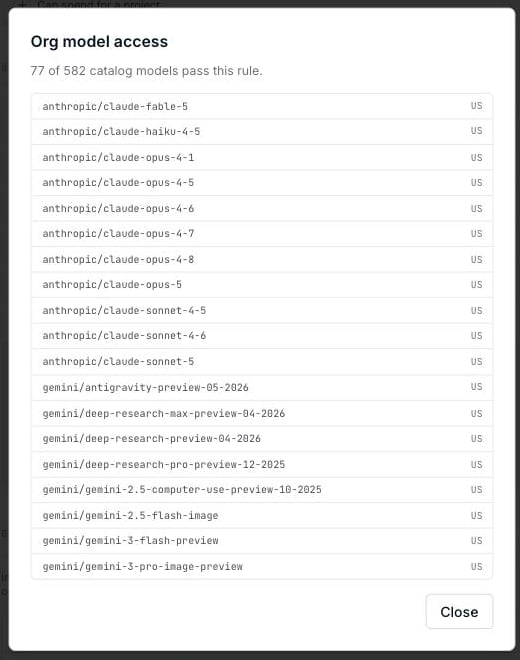
The match counter updates as you edit. Select it to review the exact models that
will remain available before you save.
With no model-access rule, every model in the catalog is available.
## Build an organization allowlist
Select **Set an org allowlist**, then filter the catalog by any combination of
these fields:
| Field | Use it to |
| --------------------- | ------------------------------------------------------------------------------------------------ |
| **Providers** | Allow selected providers, such as Anthropic or OpenAI. |
| **Blocked providers** | Block providers even if another filter would include them. |
| **Regions** | Limit where inference runs. |
| **Countries** | Limit the serving datacenter's jurisdiction. **Other** includes models without country metadata. |
| **Models** | Allow only specific catalog models. |
A model must match every field you set. Leave a field empty when you do not want
to filter on it. Blocked providers always take precedence.
The match counter updates as you edit. Select it to review the exact models that
will remain available before you save.
 If the same provider appears in both **Providers** and **Blocked providers**,
the rule cannot be saved. The pickers hide already-selected values to help
prevent that conflict.
## What model access covers
Model access applies to **LLM and embedding calls**. When a call requests a
disallowed model, Opper returns an error that identifies the model and the rule
it failed. Opper does not silently switch to a different model.
Model access does not currently apply to:
* Image, speech, and video generation. Use [spend limits](/control-plane/rules/spend)
to bound their cost.
* Virtual and router models, which filter the variants they can use separately.
[Route](/control-plane/route) rules must point to a model that the same scope can
use. If an allowlist change would invalidate an existing route, Opper asks you
to resolve the conflict before saving.
## Narrow access for a project
Select **Narrow model access for a project** to add an override. A project
override intersects with the organization rule: it can remove access, but it
cannot restore a provider, region, country, or model that the organization rule
excluded.
The override summary shows the effective result, not just the fields you added:
```
PROJECT NARROWS ORG RULE BY EFFECTIVE MODELS
sqlassistant providers → anthropic, openai 45 models of 77
```
While you edit an override, values unavailable at the organization level are
dimmed.
If the same provider appears in both **Providers** and **Blocked providers**,
the rule cannot be saved. The pickers hide already-selected values to help
prevent that conflict.
## What model access covers
Model access applies to **LLM and embedding calls**. When a call requests a
disallowed model, Opper returns an error that identifies the model and the rule
it failed. Opper does not silently switch to a different model.
Model access does not currently apply to:
* Image, speech, and video generation. Use [spend limits](/control-plane/rules/spend)
to bound their cost.
* Virtual and router models, which filter the variants they can use separately.
[Route](/control-plane/route) rules must point to a model that the same scope can
use. If an allowlist change would invalidate an existing route, Opper asks you
to resolve the conflict before saving.
## Narrow access for a project
Select **Narrow model access for a project** to add an override. A project
override intersects with the organization rule: it can remove access, but it
cannot restore a provider, region, country, or model that the organization rule
excluded.
The override summary shows the effective result, not just the fields you added:
```
PROJECT NARROWS ORG RULE BY EFFECTIVE MODELS
sqlassistant providers → anthropic, openai 45 models of 77
```
While you edit an override, values unavailable at the organization level are
dimmed.
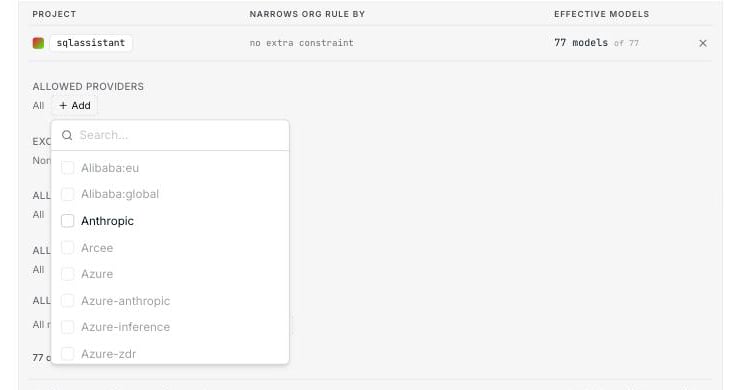 To make one of those values available, broaden the organization rule first. You
can edit both levels in the same draft and save them together.
An override can leave a project with **0 available models**. Opper warns you but
allows the save because denying all model calls may be intentional.
## If older organization rules exist
The runtime uses only the newest enabled organization allowlist. Older
organization allowlists have no effect and do not intersect with it. Rules shows
the active allowlist and tells you when older rules are still present so you can
remove them.
Project overrides still intersect with the active organization allowlist.
## Model access under Zero Data Retention
When [Zero Data Retention](/control-plane/rules/retention#enable-zero-data-retention)
is enabled, model access is locked to providers with zero-retention agreements.
The fields become read-only and the counter shows the models available from
those providers.
To make one of those values available, broaden the organization rule first. You
can edit both levels in the same draft and save them together.
An override can leave a project with **0 available models**. Opper warns you but
allows the save because denying all model calls may be intentional.
## If older organization rules exist
The runtime uses only the newest enabled organization allowlist. Older
organization allowlists have no effect and do not intersect with it. Rules shows
the active allowlist and tells you when older rules are still present so you can
remove them.
Project overrides still intersect with the active organization allowlist.
## Model access under Zero Data Retention
When [Zero Data Retention](/control-plane/rules/retention#enable-zero-data-retention)
is enabled, model access is locked to providers with zero-retention agreements.
The fields become read-only and the counter shows the models available from
those providers.
 Set broad requirements, such as “EU providers only,” at the organization level.
Use project overrides for workloads that need an even smaller model set.
Set broad requirements, such as “EU providers only,” at the organization level.
Use project overrides for workloads that need an even smaller model set.