> ## Documentation Index
> Fetch the complete documentation index at: https://docs.opper.ai/llms.txt
> Use this file to discover all available pages before exploring further.
# Rules
> Set organization-wide limits for data, spend, model access, and checks.
Rules gives you one place to decide how Opper handles every model call in your
organization. Set a retention policy, cap spend, limit which models are
available, and inspect inputs and outputs—all without changing application code.
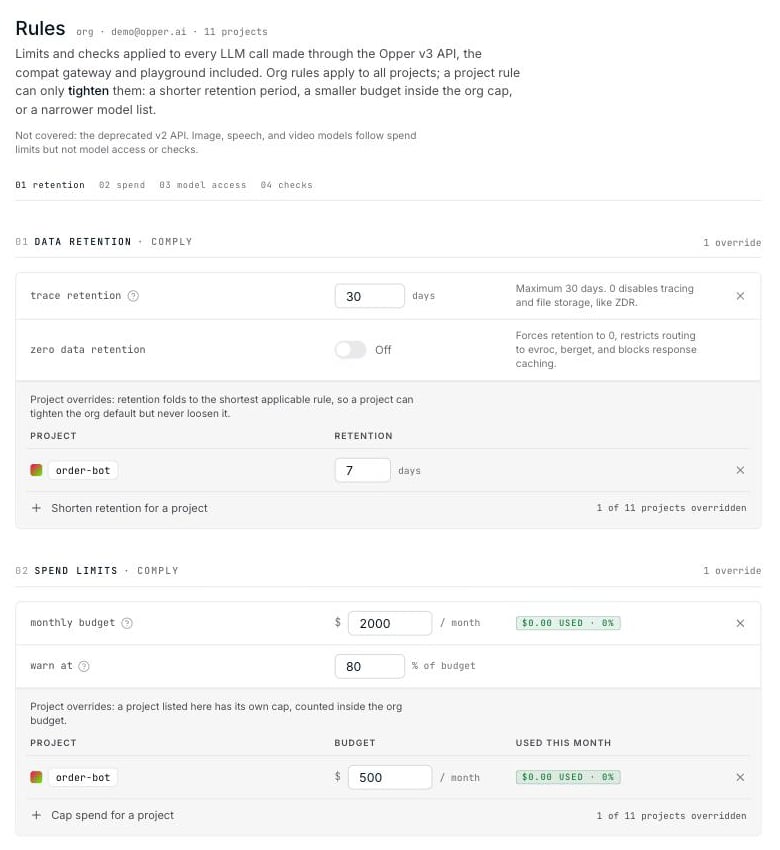 Open **Rules** from **Observe & Control** in the Opper platform. The page is also
available at `platform.opper.ai//rules` on plans that include Rules.
## What you can configure
Choose how long Opper keeps call content, or enable Zero Data Retention.
Set a monthly organization budget and optional project caps.
Restrict the providers, regions, countries, and models your apps can use.
Score quality or flag, redact, and block content.
Rules apply to LLM calls made through the **Opper v3 API**, including calls from
the [compatibility gateway](/build/gateway/drop-in-sdks) and the playground.
Spend limits also cover image, speech, and video generation. Model access and
checks do not currently apply to those modalities.
The deprecated v2 API is not covered by Rules.
## Organization rules and project overrides
Start with an organization rule to set the default for every project. Add a
project override when a workload needs a stricter policy.
| Rule | Organization setting | Project override |
| ------------------ | ---------------------------------------- | ------------------------------------ |
| **Data retention** | Default retention period | A shorter period |
| **Spend limits** | Total monthly budget | A cap within the organization budget |
| **Model access** | Models available across the organization | A narrower set of models |
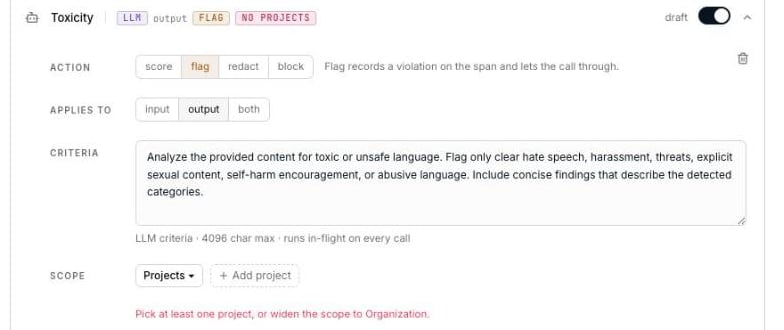
| **Checks** | Runs for every project | Runs only for selected projects |
Project overrides cannot loosen an organization rule. For example, a project
cannot use a provider blocked at the organization level or retain data for
longer than the organization allows.
Overrides for retention, spend, and model access appear directly below their
organization rule. For checks, choose the scope while editing the check.
## Save a set of changes
You can edit several sections before applying them. Nothing changes until you
select **Save changes**.
Open **Rules** from **Observe & Control** in the Opper platform. The page is also
available at `platform.opper.ai//rules` on plans that include Rules.
## What you can configure
Choose how long Opper keeps call content, or enable Zero Data Retention.
Set a monthly organization budget and optional project caps.
Restrict the providers, regions, countries, and models your apps can use.
Score quality or flag, redact, and block content.
Rules apply to LLM calls made through the **Opper v3 API**, including calls from
the [compatibility gateway](/build/gateway/drop-in-sdks) and the playground.
Spend limits also cover image, speech, and video generation. Model access and
checks do not currently apply to those modalities.
The deprecated v2 API is not covered by Rules.
## Organization rules and project overrides
Start with an organization rule to set the default for every project. Add a
project override when a workload needs a stricter policy.
| Rule | Organization setting | Project override |
| ------------------ | ---------------------------------------- | ------------------------------------ |
| **Data retention** | Default retention period | A shorter period |
| **Spend limits** | Total monthly budget | A cap within the organization budget |
| **Model access** | Models available across the organization | A narrower set of models |
| **Checks** | Runs for every project | Runs only for selected projects |
Project overrides cannot loosen an organization rule. For example, a project
cannot use a provider blocked at the organization level or retain data for
longer than the organization allows.
Overrides for retention, spend, and model access appear directly below their
organization rule. For checks, choose the scope while editing the check.
## Save a set of changes
You can edit several sections before applying them. Nothing changes until you
select **Save changes**.
 The save bar lists every section with unsaved changes. Select **Discard** to
reload the saved configuration, or **Save changes** to apply the entire draft.
If something needs attention, the bar links to the affected field and disables
saving until the problem is fixed.
The save bar lists every section with unsaved changes. Select **Discard** to
reload the saved configuration, or **Save changes** to apply the entire draft.
If something needs attention, the bar links to the affected field and disables
saving until the problem is fixed.
 ## Defaults for a new organization
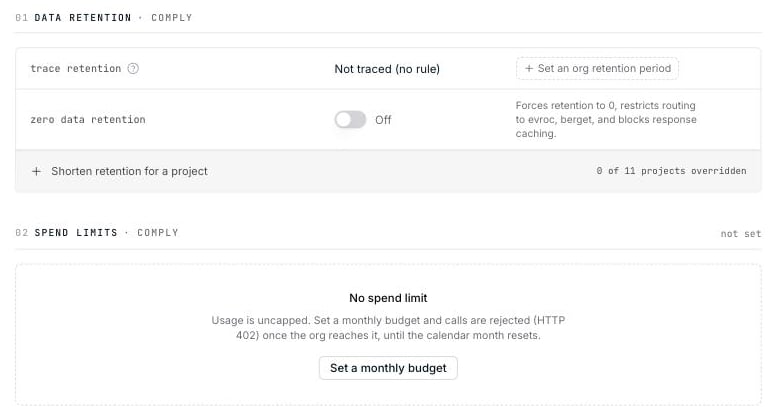 Before you create any rules:
* Opper records usage metadata, but does not store trace content such as inputs,
outputs, or spans.
* Usage is uncapped.
* Every model in the catalog is available.
* No checks run.
See [Data retention](/control-plane/rules/retention) for the difference between
trace content and the usage metadata Opper keeps for billing.
## Link to a rule
Each section has a stable URL fragment:
| Fragment | Opens |
| --------------- | ---------------- |
| `#retention` | Data retention |
| `#spend` | Spend limits |
| `#model-access` | Model access |
| `#checks` | Checks |
| `#rule-` | A specific check |
When trace storage is enabled, checks and model-access decisions appear as
events on the relevant [trace span](/control-plane/trace). Rules still enforce
under Zero Data Retention, but no trace content is stored.
Before you create any rules:
* Opper records usage metadata, but does not store trace content such as inputs,
outputs, or spans.
* Usage is uncapped.
* Every model in the catalog is available.
* No checks run.
See [Data retention](/control-plane/rules/retention) for the difference between
trace content and the usage metadata Opper keeps for billing.
## Link to a rule
Each section has a stable URL fragment:
| Fragment | Opens |
| --------------- | ---------------- |
| `#retention` | Data retention |
| `#spend` | Spend limits |
| `#model-access` | Model access |
| `#checks` | Checks |
| `#rule-` | A specific check |
When trace storage is enabled, checks and model-access decisions appear as
events on the relevant [trace span](/control-plane/trace). Rules still enforce
under Zero Data Retention, but no trace content is stored.