> ## Documentation Index
> Fetch the complete documentation index at: https://docs.opper.ai/llms.txt
> Use this file to discover all available pages before exploring further.
# Spend limits
> Set a monthly organization budget and optional project caps.
Spend limits protect you from unexpected usage. Set one budget for the
organization, then give individual projects smaller caps where you need tighter
control.
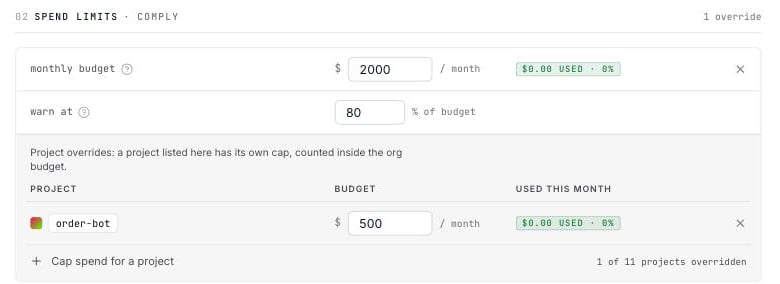 ## Set the monthly budget
| Field | What it controls |
| ------------------ | ---------------------------------------------------------------------------- |
| **Monthly budget** | The maximum organization spend for the calendar month. |
| **Warn at** | The percentage at which the usage indicator turns amber. The default is 80%. |
The usage indicator shows current month-to-date spend:
* Green below the warning threshold
* Amber at or above the warning threshold
* Red at 100%
**Warn at** changes the indicator on this page; it does not send an email or
notification.
## What happens when you reach a limit
The call that reaches or crosses the limit completes. Opper blocks the next call
with **HTTP 402 Payment Required**, so final spend can be slightly higher than
the configured amount.
Budget limits reset at the start of each calendar month in **UTC**. Adding credit
does not clear a budget block because the limit applies to spend, not account
balance. To resume calls sooner, raise or remove the budget; Opper re-evaluates
the block as soon as you save.
A low account balance can also return HTTP 402. Adding credit clears a
balance-related block, but not a monthly budget block.
## Add project caps
Select **Cap spend for a project** to limit one project's monthly spend. Project
usage counts toward the organization budget—it is not an additional allowance.
When you save, Opper checks that:
* The organization has at most one enabled monthly budget.
* Each project has at most one enabled project cap.
* Every project cap is less than or equal to the organization budget.
These checks work in both directions. If an existing project cap is $500, for
example, you cannot lower the organization budget below $500 until you reduce
the project cap.
## What counts toward a limit
Spend limits cover every billable model call, including:
* LLM and embedding calls through the v3 API and compatibility gateway
* Image, speech, and video generation
* Judge calls made by [score checks](/control-plane/rules/checks#score-checks)
Use the organization budget as the hard ceiling for your account. Use project
caps to contain workloads that may spike independently.
## Set the monthly budget
| Field | What it controls |
| ------------------ | ---------------------------------------------------------------------------- |
| **Monthly budget** | The maximum organization spend for the calendar month. |
| **Warn at** | The percentage at which the usage indicator turns amber. The default is 80%. |
The usage indicator shows current month-to-date spend:
* Green below the warning threshold
* Amber at or above the warning threshold
* Red at 100%
**Warn at** changes the indicator on this page; it does not send an email or
notification.
## What happens when you reach a limit
The call that reaches or crosses the limit completes. Opper blocks the next call
with **HTTP 402 Payment Required**, so final spend can be slightly higher than
the configured amount.
Budget limits reset at the start of each calendar month in **UTC**. Adding credit
does not clear a budget block because the limit applies to spend, not account
balance. To resume calls sooner, raise or remove the budget; Opper re-evaluates
the block as soon as you save.
A low account balance can also return HTTP 402. Adding credit clears a
balance-related block, but not a monthly budget block.
## Add project caps
Select **Cap spend for a project** to limit one project's monthly spend. Project
usage counts toward the organization budget—it is not an additional allowance.
When you save, Opper checks that:
* The organization has at most one enabled monthly budget.
* Each project has at most one enabled project cap.
* Every project cap is less than or equal to the organization budget.
These checks work in both directions. If an existing project cap is $500, for
example, you cannot lower the organization budget below $500 until you reduce
the project cap.
## What counts toward a limit
Spend limits cover every billable model call, including:
* LLM and embedding calls through the v3 API and compatibility gateway
* Image, speech, and video generation
* Judge calls made by [score checks](/control-plane/rules/checks#score-checks)
Use the organization budget as the hard ceiling for your account. Use project
caps to contain workloads that may spike independently.