

Start from a template
When you have no checks, Rules shows a gallery of common starting points. Select a template to add a pre-filled draft, then review it before saving.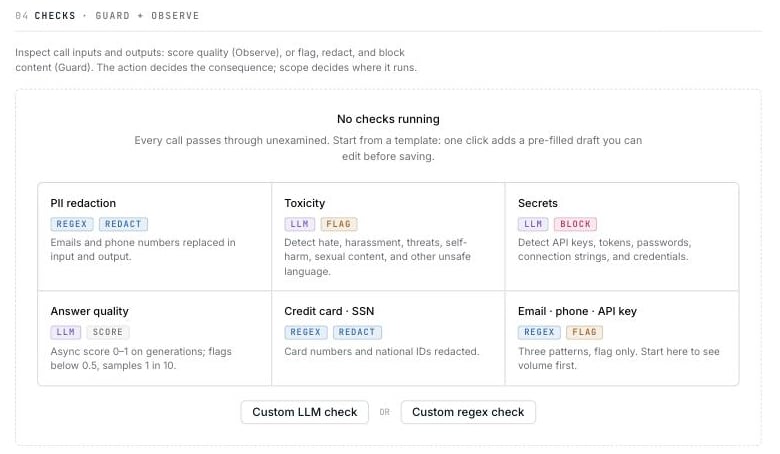
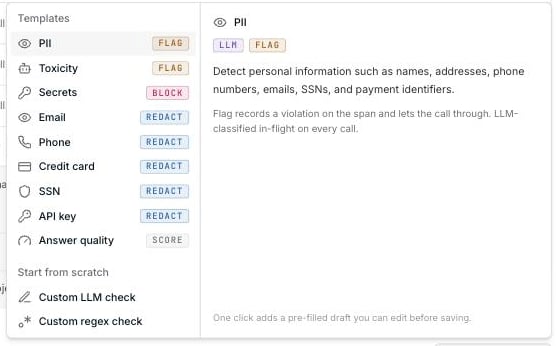
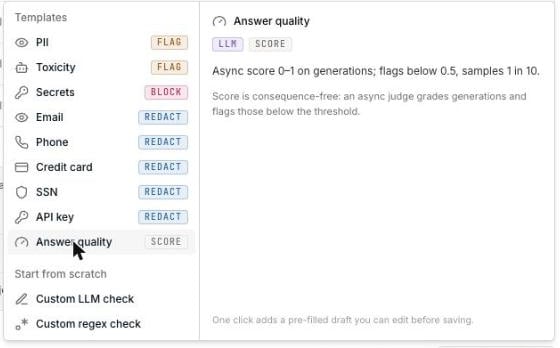
The description pane explains what each template detects and what its default
action will do.
Choose an action
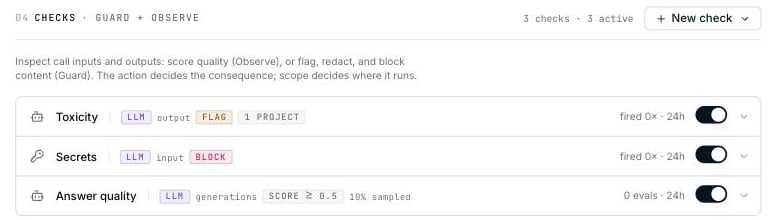
The action determines when a check runs and whether it can change the call.
Score checks are stored and run differently from enforcement checks. Changing a
saved check between Score and another action creates a new check, so its
previous activity history is not carried over.
Choose an engine
LLM checks
Use an LLM check when the rule depends on meaning or context—for example tone, intent, toxicity, or whether an answer addressed the question.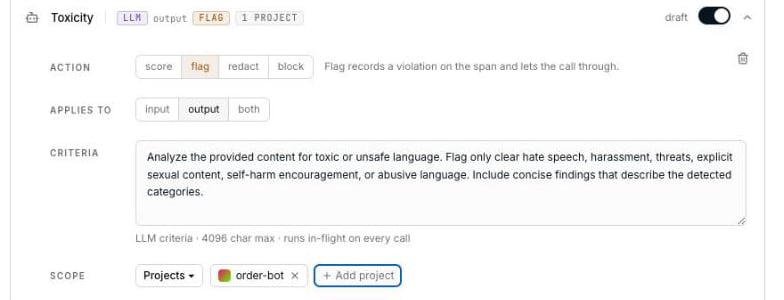
Opper chooses and manages the classifier model. LLM checks use a failover chain
and are billed at a flat rate for checks, regardless of which model handles the
request.
Regex checks
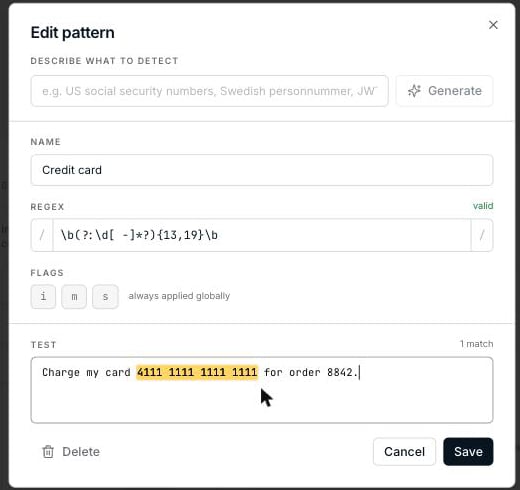
Use a regex check for predictable formats such as email addresses, credit card numbers, SSNs, and API keys. Regex checks do not call a model and cannot use the Score action.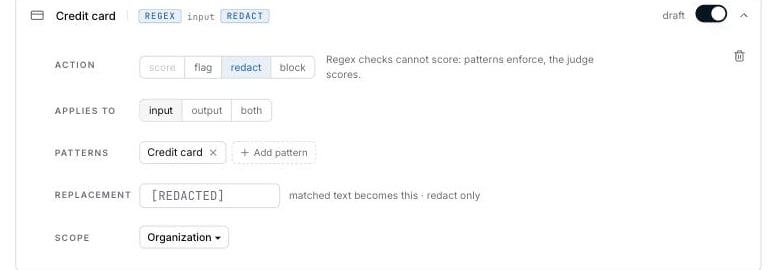
Redaction behavior
When the action is Redact, a regex check replaces each match with*** by
default. An LLM check uses [REDACTED]. Enter a replacement value if you want a
different result.
If an LLM check detects a violation but cannot identify the exact text to
replace, Opper flags the call instead of changing its content. This can happen
with broad findings such as toxicity.
Score checks
Choose Score to evaluate response quality after a call completes.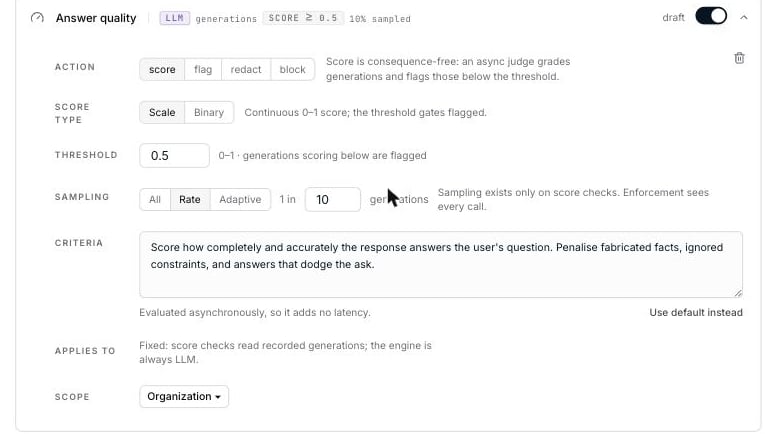
Score type
Sampling
Sampling controls how many outputs the judge evaluates and therefore how much the check costs.
Adaptive sampling keeps evaluation costs more predictable during traffic
spikes. If its counter is unavailable, Opper evaluates every output rather
than silently skipping them.
The judge model is managed by Opper and billed at the same flat rate for checks.
Disabling a score check stops queued evaluations before the next judge call
begins.
Set the scope
Run a check across the organization or limit it to selected projects.
If you choose Projects, select at least one project before saving.
When checks overlap
Every matching check runs; there is no priority order. If several checks apply to the same call, the strictest result wins. One blocking result is enough to reject the call. Rules highlights checks with the same name and overlapping scope so you can confirm that the overlap is intentional.Opper evaluates up to 32 checks per request, counting input and output
together. Any additional checks are skipped.