

Without an applicable enabled retention rule, Opper records usage metadata — model, cost, and latency — but does not store traces. To capture spans, inputs, and outputs, turn on tracing in Opper retention. Logs lists every call either way.
What you see in the dashboard
Open Traces in platform.opper.ai. Three views build on each other. The trace explorer lists recent traces, each row showing the time, total duration, the trace name with its step composition (e.g. 28 steps · 8 llm · 11 tool), cost and tokens, and a preview of the input and output. A status dot flags failures, and you can search by trace name or filter by Status, Duration, and Cost.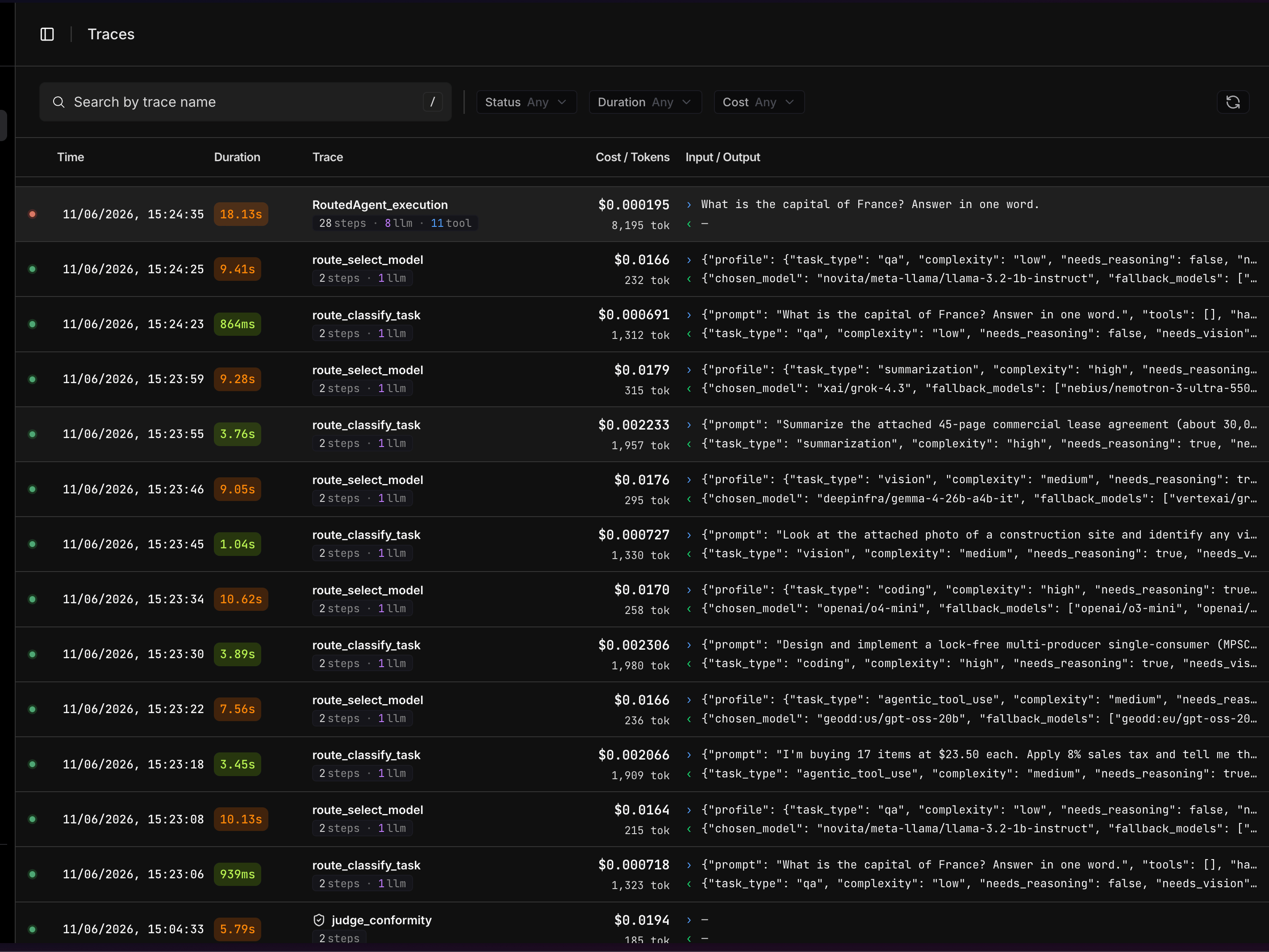
llm) and tool calls (web_search, web_fetch, …) nest under the step that ran them. The header sums up the whole trace — duration, tokens, and cost.
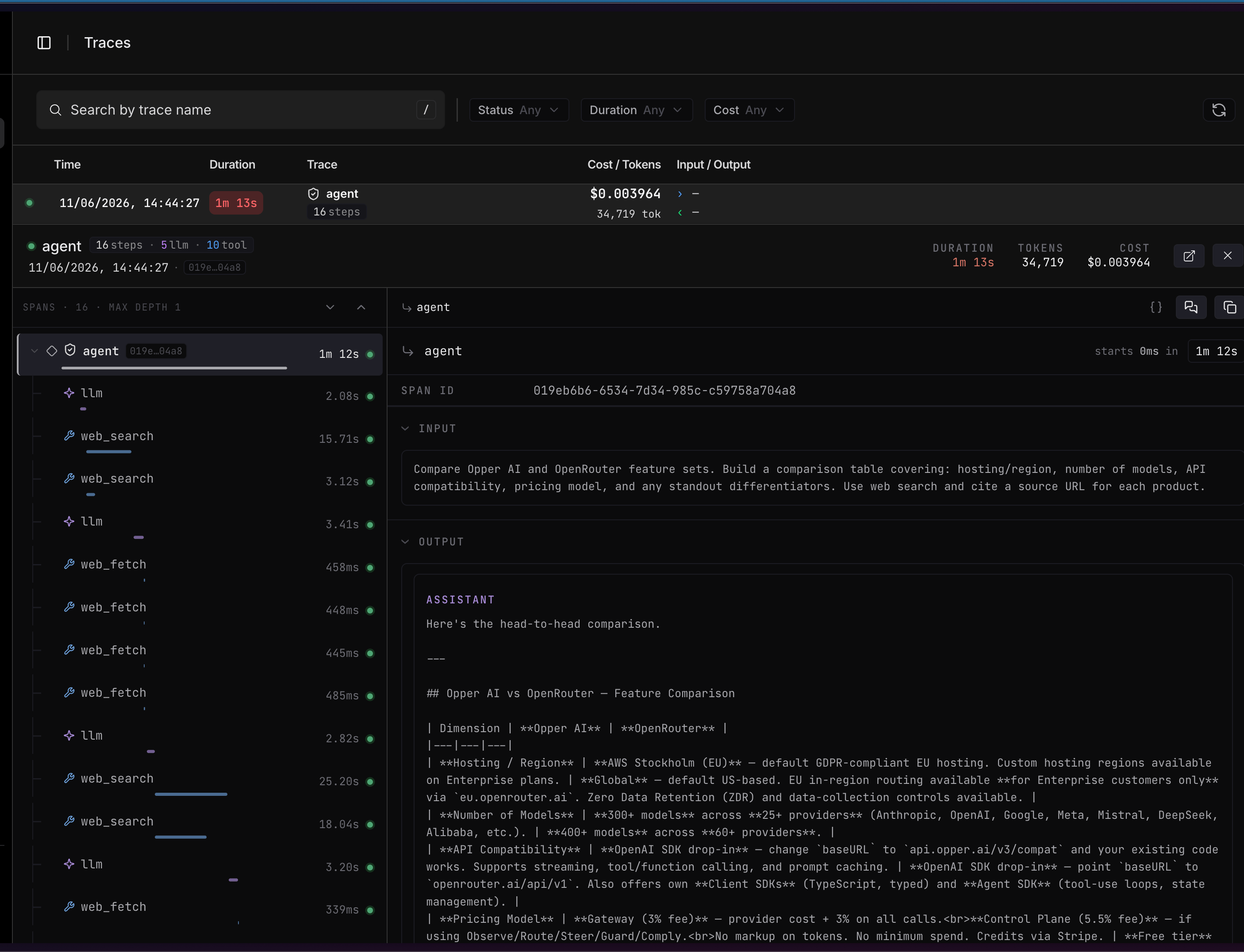
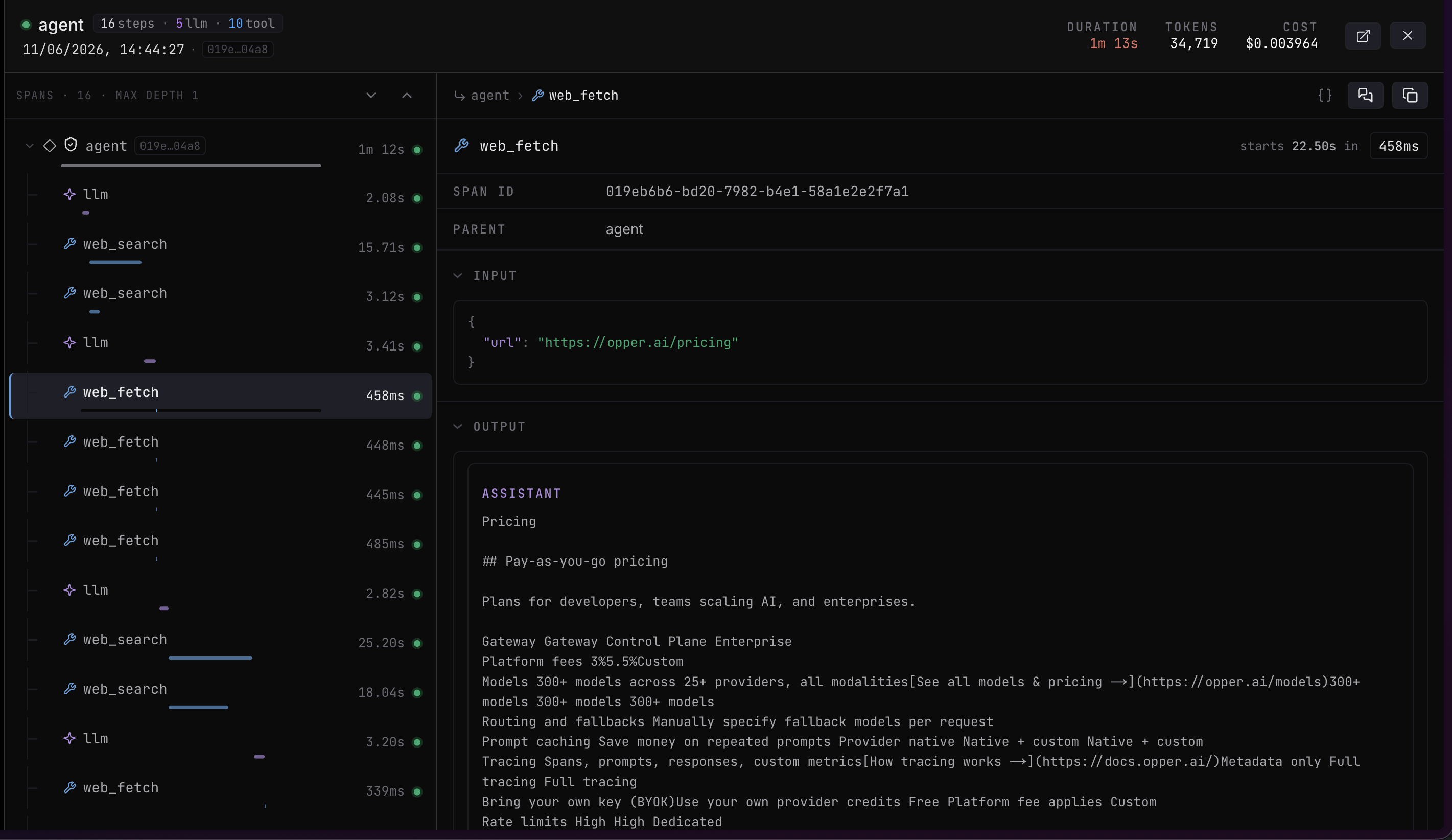
{} toggle). Click into any span to drill down through the breadcrumb at the top.
Quick actions
A few actions sit in the header of each view:Replay a trace in the playground
Open in playground reconstructs the trace as an editable conversation — every system, user, and assistant turn, in order — so you can pick up a real production run and iterate on it.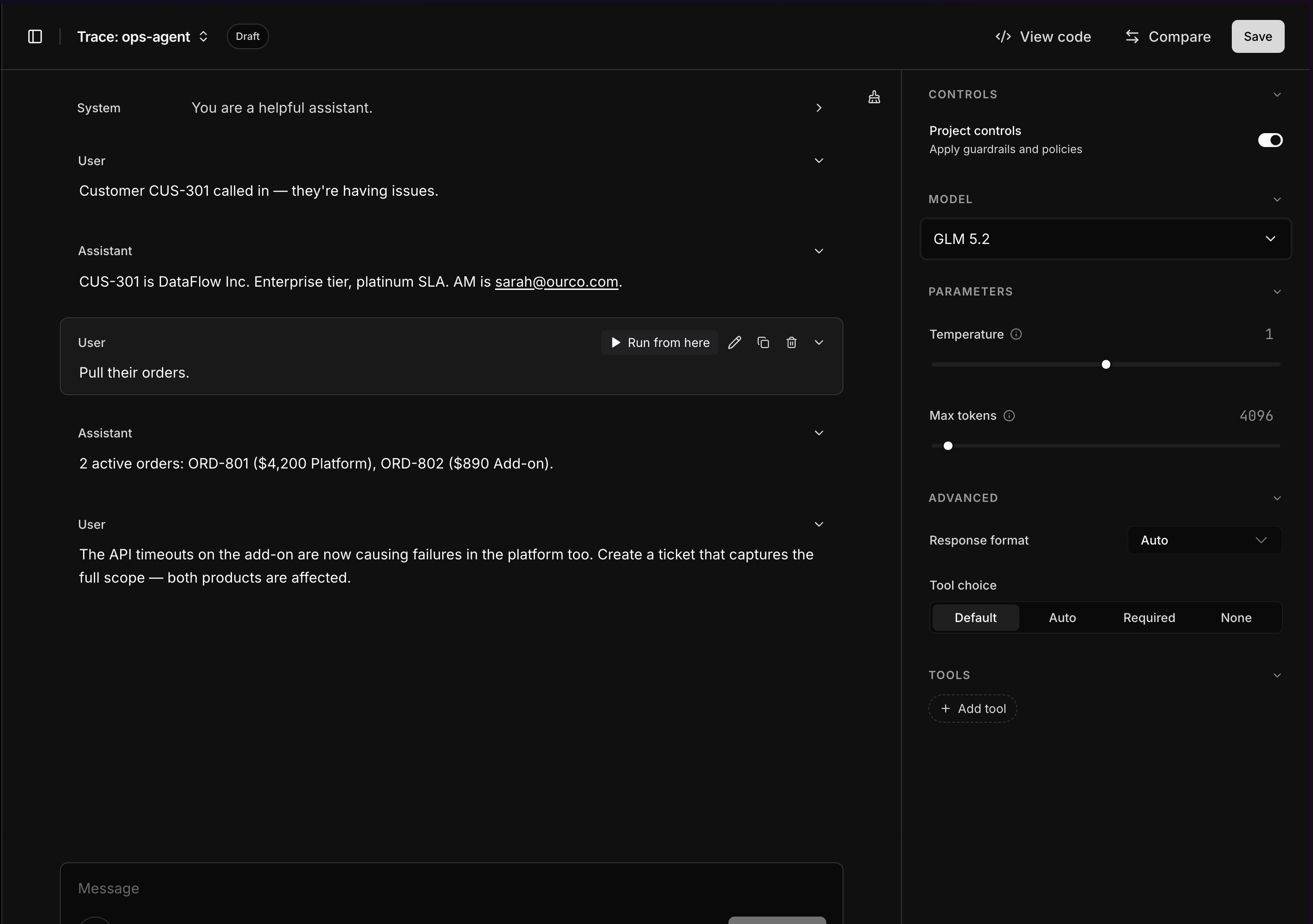
- Run from here — hover any message and replay the conversation from that point, so you can change one turn and see how the run plays out without rerunning everything before it.
- Switch the model — pick a different model from the Model dropdown to see how another model handles the same input, and adjust Parameters (temperature, max tokens), Controls, and Tools alongside it.
- View code, Compare, or Save the result — none of this touches production, so it’s a safe place to debug a bad trace or tune a prompt.
The trace model
A trace is a tree of spans. The root span names the trace; every other span points to its parent throughparent_id, which is how the tree is built. Spans of type generation are the LLM calls; tool and function calls appear as their own spans nested under the step that invoked them.
Generation spans carry extra detail — the
model that ran, total_tokens, the instructions used, and, when a score check runs, the judge’s observations and per-criterion scorer_context.
The trace itself rolls up its spans: name, input, output, start_time/end_time, duration_ms, status, span_count, and total_tokens, plus the ordered spans tree and any events.
Retention
Retention rules attach at the org or project level, so you can set different policies for different projects — a longer period on a staging project while you debug, or zero-day retention on a sensitive production one, and so on. Set them in Opper retention. See Core concepts for how this fits into the request path.Instrument custom spans
Most spans are created for you. To trace work that happens outside a single Gateway call — a multi-step pipeline, a background job, your own retrieval step — create spans yourself. A span with noparent_id starts a new trace; pass parent_id to nest a child under it.
Read traces programmatically
List recent traces, then fetch one to walk its span tree.Events and feedback on spans
As a call runs, Opper records rule and routing activity as events on the relevant span. Each event has akind—guardrail, observe, route, comply,
or feedback—plus a source and data payload. These backend event names remain
for API compatibility even though the platform now presents them through Rules.
You can also write your own events — for example, capturing thumbs-up/down feedback from your app — with POST /v3/spans/{id}/events, and read them back with GET /v3/spans/{id}/events.
Where to go next
Checks
Score every response against criteria you write. Results land on the trace.
Opper retention
Turn on retention so traces store full inputs and outputs.
Spans API
Create, update, and read spans directly over the API.
Core concepts
How traces fit with the Gateway, projects, and Rules on a call.